

Get the FAB app from the Apple App Store or Google Play Store. Install it. Open it. Register using the debit card and the 4-digit PIN. Turn on fingerprint login. The balance shows up on the dashboard. No branch visit. No paperwork. Takes less than ten minutes.
For a secure fab bank balance check, this app does the job. This guide covers every step. Downloading. Registration. Biometric setup. Dashboard. Quick features. Problems and fixes. Straight talk. No fluff.
Why Bother With the App?
Speed. The app shows the balance in under ten seconds. No typing passwords each time. Fingerprint or face scan does it.
Security. Biometric login locks out everyone else. Even if the phone gets lost.
Convenience. Works anywhere with the internet. Home. Office. Grocery store. Outside the UAE.
Extra stuff. Transaction history. Credit card balances. Loan details. All in one spot.
What to Have Ready Before Downloading
Grab these first. Saves headaches.
You need:
- A smartphone. iPhone or Android.
- Internet. Wi-Fi or mobile data.
- Debit card. The physical one. Know the 4-digit PIN.
- Mobile number. Must match bank records.
Nice to have:
- Emirates ID.
- Online banking login if already set up.
More to Check: FAB Salary Check Guide for UAE Residents | 2026 Updated!
Step 1: Get the App
iPhone users:
Open the App Store. Tap search. Type “First Abu Dhabi Bank.” Look for the blue FAB logo. Check who made it. Must say “First Abu Dhabi Bank P.J.S.C.” Tap “Get.” Use face ID or Apple password. Wait for it to download.
Android users:
Open Google Play Store. Tap search. Type “First Abu Dhabi Bank.” Look for the blue logo. Check the developer name. Tap “Install.” Wait for it.
Watch out for fakes:
Fake banking apps show up sometimes. They look real. They steal logins. Always check the developer name. Never download from random websites.
Step 2: Open the App
Tap the FAB icon on the home screen. A welcome screen pops up. Two choices. “Login” and “Register.”
Already use online banking?
Tap “Login.” Enter the username and password. Skip to Step 4.
New user?
Tap “Register.” Follow Step 3.
Step 3: Sign Up for a New Account
What you need:
The physical debit card. Need the 16-digit number. Need the 4-digit PIN. Not the ATM PIN. The one used for buying things in stores.
The steps:
Tap “Register.” Enter the 16-digit card number. Enter the 4-digit PIN. The app sends a code by SMS. Type that code within 60 seconds.
Pick a username. 6 to 20 characters. Pick a password. At least 8 characters. One number and one capital letter required. Type it again to confirm.
After that:
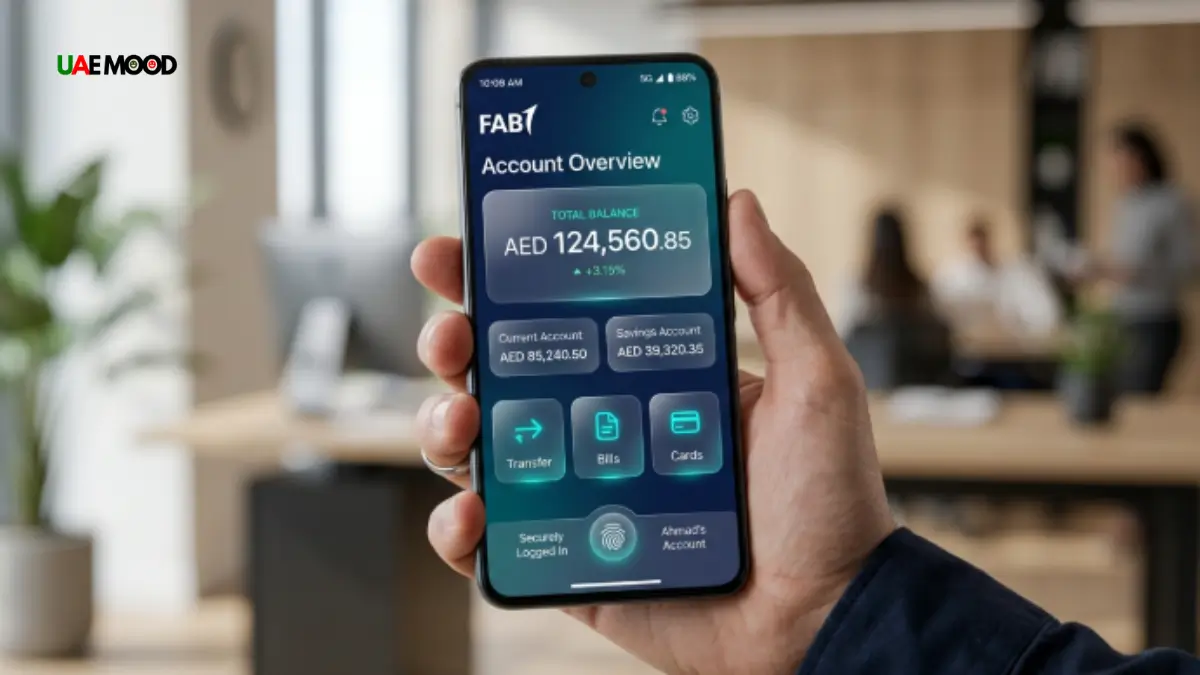
The dashboard opens. The account balance sits at the top. Big and clear.
Step 4: Turn On Fingerprint or Face ID
This saves time. No password typing after this.
How to do it:
Right after login, the app asks to enable biometric login. Tap “Enable” or “Set Up.” For iPhone, use face ID or touch ID. For Android, put a finger on the sensor. The phone confirms it worked.
Missed it during setup?
Log in with the password. Go to the menu. The menu icon looks like three lines or a profile picture. Tap “Settings.” Tap “Security.” Tap “Biometric Login.” Turn it on. Scan fingerprint or face.
What happens now:
Opening the app just needs a fingerprint or face scan. Two seconds. No password. No codes.
Step 5: Learn the Dashboard
The dashboard shows everything after login.
What you see:
Primary account balance. Big number at the top. Available balance below it. That is money ready to spend. Current balance next to it. Total before pending transactions. Recent transactions underneath. Last five to ten purchases or deposits.
Other accounts:
Swipe left or right on the dashboard. Savings accounts show up. Credit cards show up. Loans show up. Each has its own balance.
Transaction history:
Tap any account. The full list loads. Each transaction shows date, description, and amount. Pending ones have a clock icon.
Related: How to Get Started with PPC FAB?
Step 6: Set Up Quick Balance Features
Two features make checking balance even faster.
Home screen widget:
Shows the balance without opening the app. No login needed. Just the number. No transaction details.
iPhone setup:
Touch and hold an empty spot on the home screen. Tap the plus icon in the corner. Search for FAB. Pick a widget size. Tap “Add Widget.”
Android setup:
Touch and hold an empty spot on the home screen. Tap “Widgets.” Find FAB. Drag the widget to the home screen.
Push notifications:
The app sends alerts after every purchase or deposit. Shows how much was spent and the new balance. Shows up on the lock screen.
How to turn it on:
Open the app. Go to the menu. Tap “Settings.” Tap “Notifications.” Turn on “Balance Updates” or “Transaction Alerts.”
Step 7: Extra Security Steps
Do these right away.
Enable app lock:
Some phones let you lock individual apps. Go to phone settings. Find “App Lock” or “App Permissions.” Pick FAB. Turn on lock with PIN or pattern.
Keep the app updated:
Open App Store or Play Store. Search FAB. If “Update” shows up, tap it. Updates fix security holes.
Log out on borrowed phones:
Using a friend’s phone or a work device? Go to the menu. Tap “Log Out.” Do not save the password.
Never share OTP:
FAB will never call or text asking for a one-time password. Anyone who asks is a scammer.
Fixing Common Problems
App won’t download:
Check the internet. Free up storage space. Restart the phone. Try again.
“Invalid PIN” during registration:
The 4-digit debit card PIN is not the ATM PIN. Use the one for store purchases. Call the bank if forgotten.
OTP not arriving:
Check if the mobile number is correct in bank records. Wait 60 seconds. Request a new code. Check the spam folder.
Biometric login not working:
Go to phone settings. Make sure fingerprint or face ID is allowed for the FAB app. Re-register biometrics in app settings.
App keeps crashing:
Close the app completely. Restart the phone. Check for updates. Reinstall if nothing works.
Final Words
Downloading and setting up the FAB app takes less than ten minutes. Get it from official stores. Sign up with the debit card and PIN. Turn on fingerprint login. Add the home screen widget for instant access. Turn on push notifications for balance alerts. The app shows the balance in under ten seconds. No branch visit. No paperwork. Just a phone and internet. Download it today. Set it up. The balance is waiting.
Frequently Asked Questions
Q1: Is the FAB mobile app free to download and use?
Yes. The app is free. Mobile carrier data charges may apply.
Q2: Do I need an existing online banking account to use the app?
No. New users can register directly using their FAB debit card and 4-digit PIN.
Q3: How long does the initial setup take?
Between five and ten minutes. Faster if the debit card is ready.
Q4: Can the same app be installed on two different phones?
Yes. However, the same login credentials cannot be used on both devices simultaneously.
Q5: What should be done if the phone is lost or stolen?
Call FAB customer service immediately. They will block app access remotely.